Screenshots
App details
- Version
- 1.9.4039
- Size
- 630.72 KB
- Updated
- August 12, 2019
- Requires
- Windows 8
- Language
- English
- License
- Free
- Developer
- More programs (10)
- Category
- Windows OS
SoftPas in:
This product is also available in the following languages:
About CaptureScreen
Download CaptureScreen – Free, Secure Screen Capture Tool for Windows, Mac, Android & iOS
CaptureScreen is a lightweight, user-friendly screen capturing tool designed for anyone who needs to capture screenshots quickly and efficiently. With a minimalist transparent window interface, CaptureScreen lets you select any area of your screen by simply dragging the window over the desired region. Whether you're documenting software bugs, creating tutorials, or saving important information, this tool delivers fast, reliable results. It supports full-screen captures via the context menu and offers basic editing features such as grayscale conversion, color adjustment, and thumbnail generation. While it doesn’t include advanced functions like window capture or batch recording, its simplicity and speed make it ideal for everyday users. CaptureScreen is available for free download on Windows, Mac, Android, and iOS, ensuring cross-platform accessibility. The software is secure, regularly updated, and requires no installation—perfect for users who value convenience and performance.
Simple & Intuitive Interface: Capture Anything with a Transparent Window
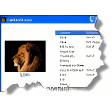
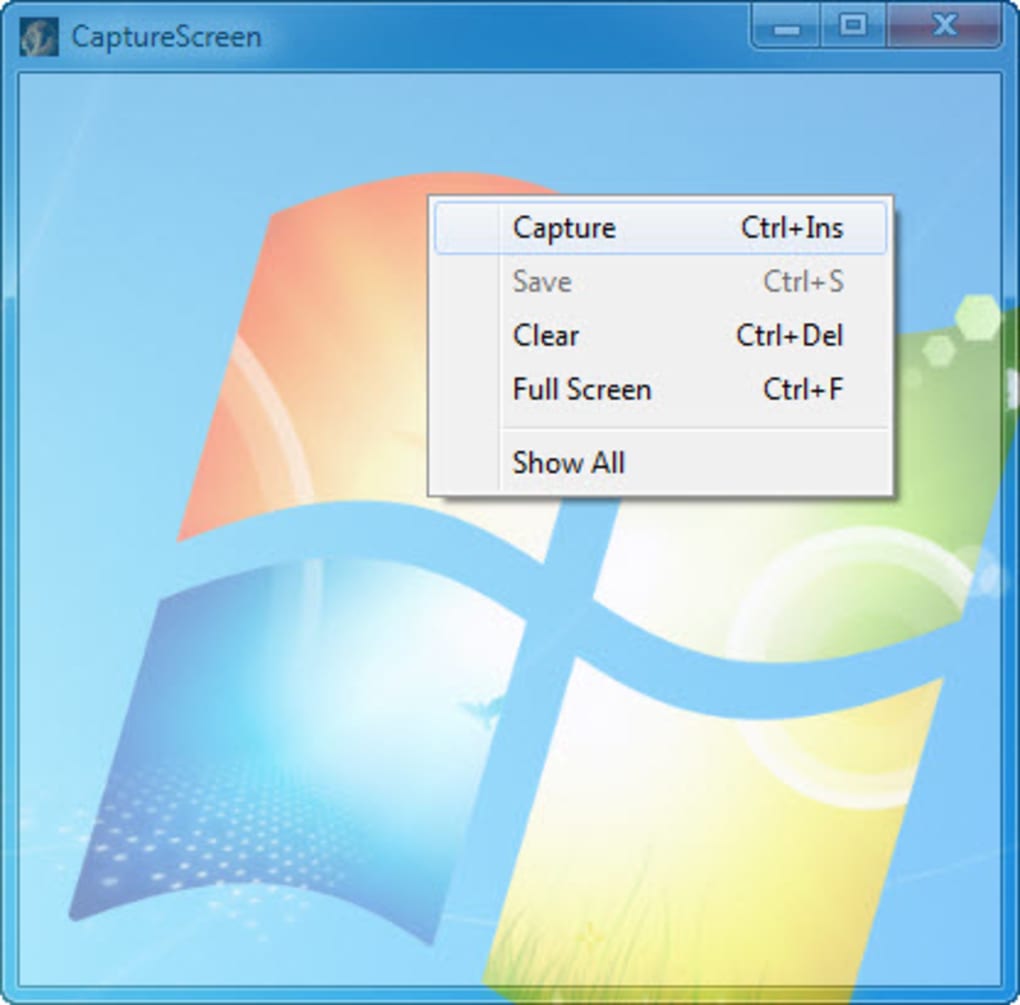
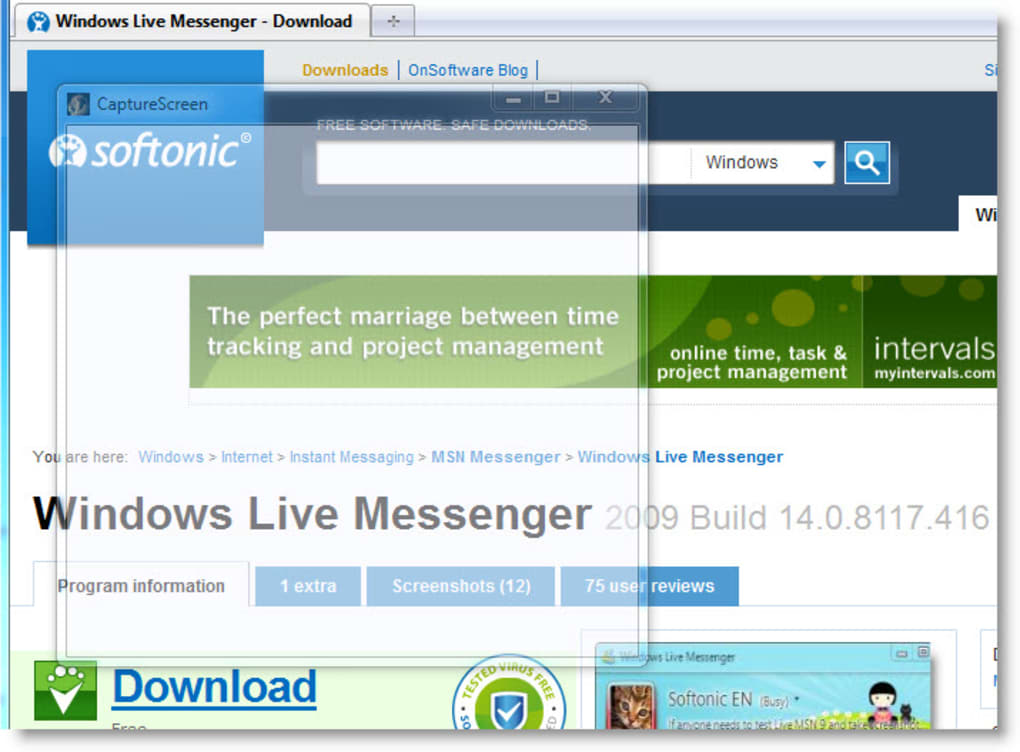
One of the standout features of CaptureScreen is its innovative transparent window interface. Unlike traditional screen capture tools that require you to open a menu or select a region from a dropdown, CaptureScreen places a semi-transparent window directly on your desktop. This window acts as your capture tool—simply drag it over the area you want to capture, and the moment you release it, the screenshot is taken. The simplicity of this design is both elegant and highly effective. There’s no learning curve, making it perfect for beginners and power users alike.
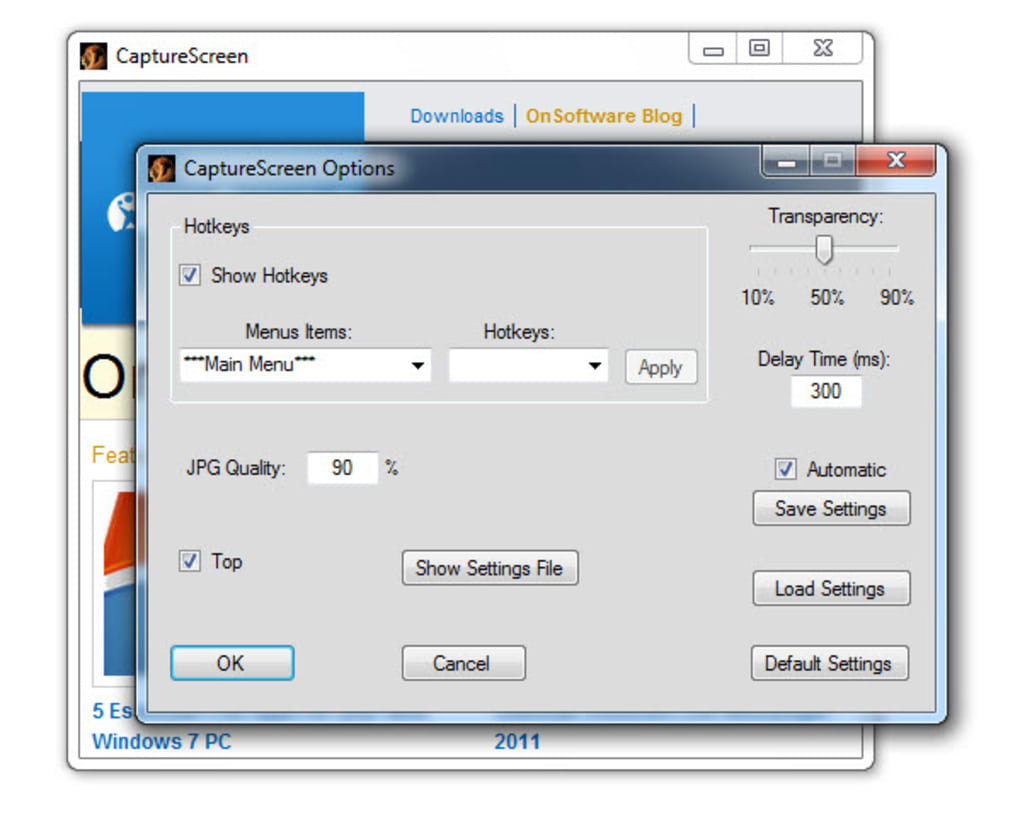
The transparent window is fully customizable in terms of size and opacity, allowing you to maintain visibility of the content beneath while still having precise control over the capture area. This is especially useful when capturing small UI elements or text that might be difficult to see under a solid overlay. Additionally, the tool automatically adjusts to your screen resolution, ensuring compatibility across monitors of different sizes and DPI settings.
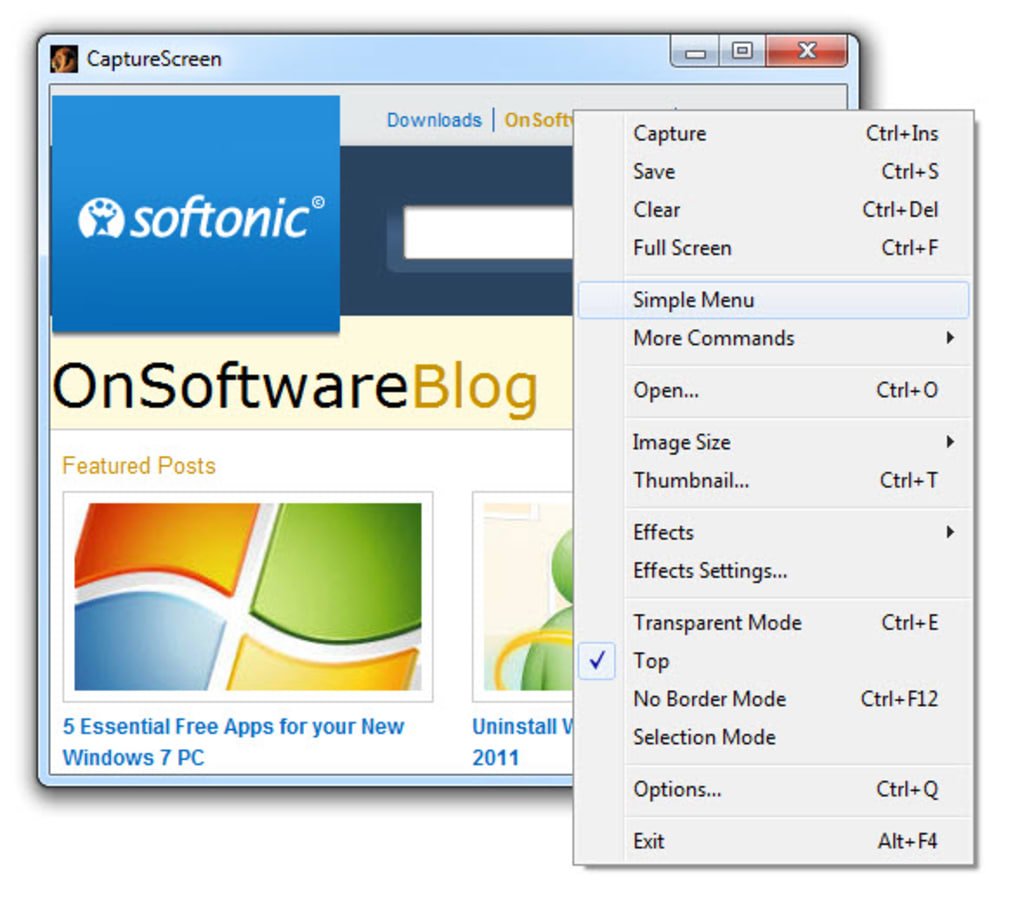
For full-screen captures, a simple right-click on the transparent window brings up the context menu, where you can select “Full Screen” with one click. This feature is invaluable when you need to document an entire desktop layout or capture a long webpage. The entire process—from opening the app to saving the image—takes less than 10 seconds. The tool runs in the background with minimal system resource usage, making it ideal for older machines or multitasking environments. Whether you're working on a Windows PC, Mac, Android tablet, or iOS device, the interface remains consistent and intuitive, enhancing your overall user experience.
Essential Editing Tools & Cross-Platform Accessibility
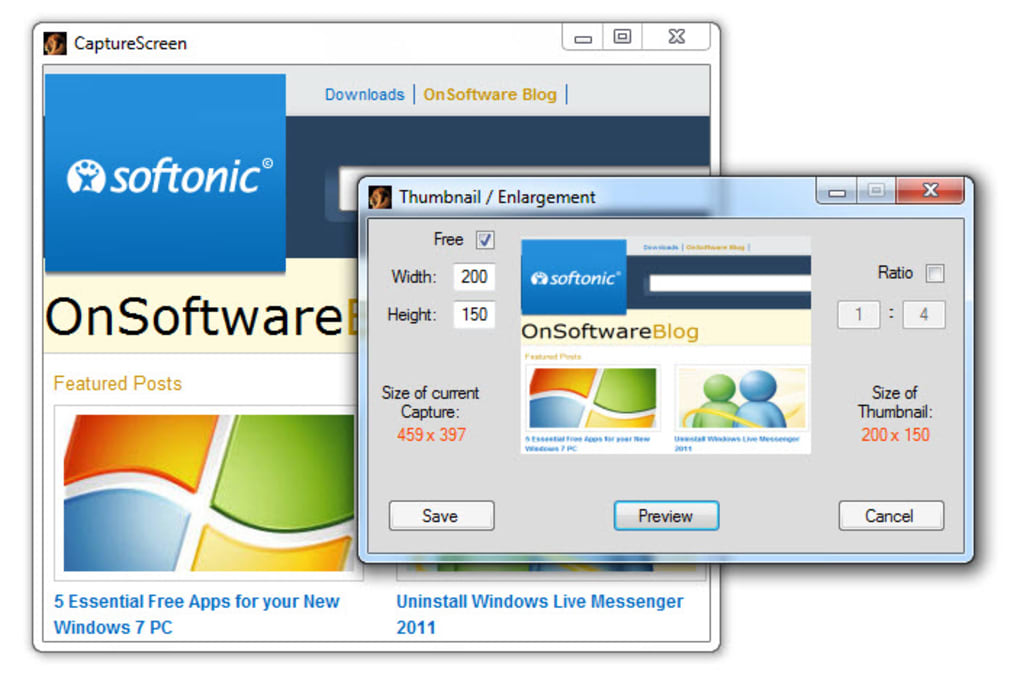
After capturing your screen, CaptureScreen doesn’t just save the image—it empowers you to make quick edits right within the app. Right-clicking the captured image opens a context menu packed with practical tools. You can instantly copy the screenshot to your clipboard, which is perfect for pasting into documents, emails, or messaging apps. For sharing purposes, the app offers a thumbnail generation feature that creates a smaller, optimized version of your image—ideal for social media or web uploads.
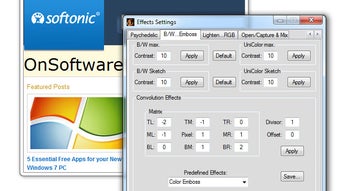
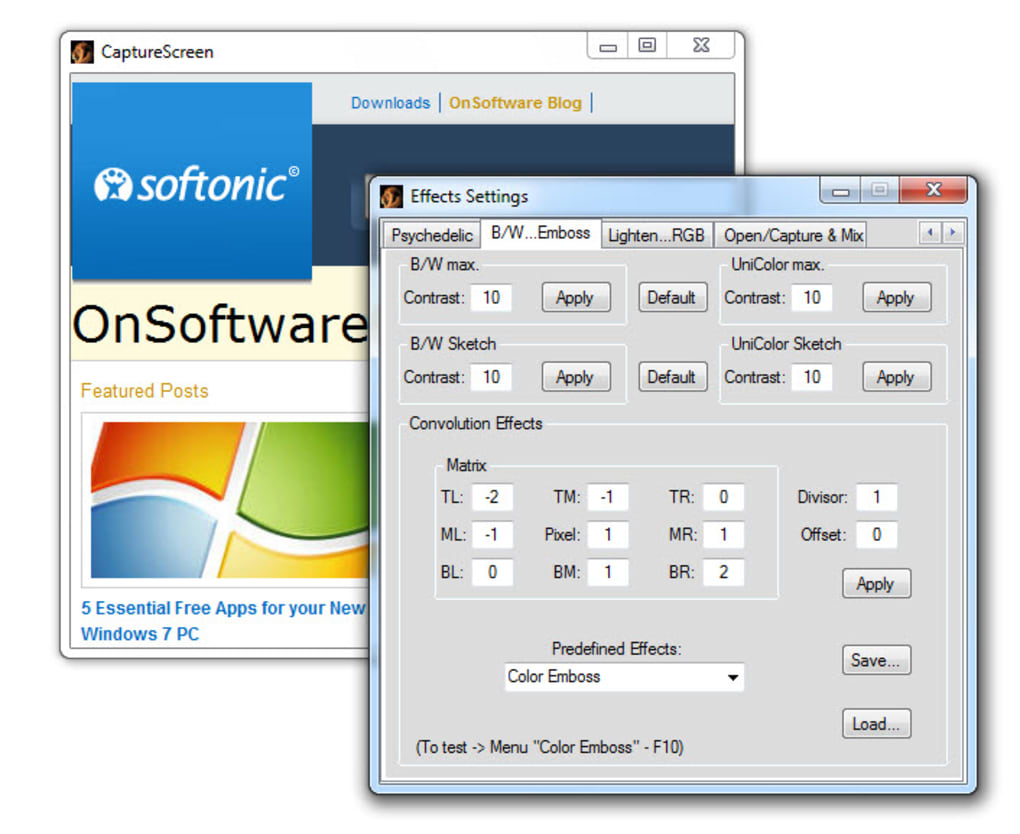
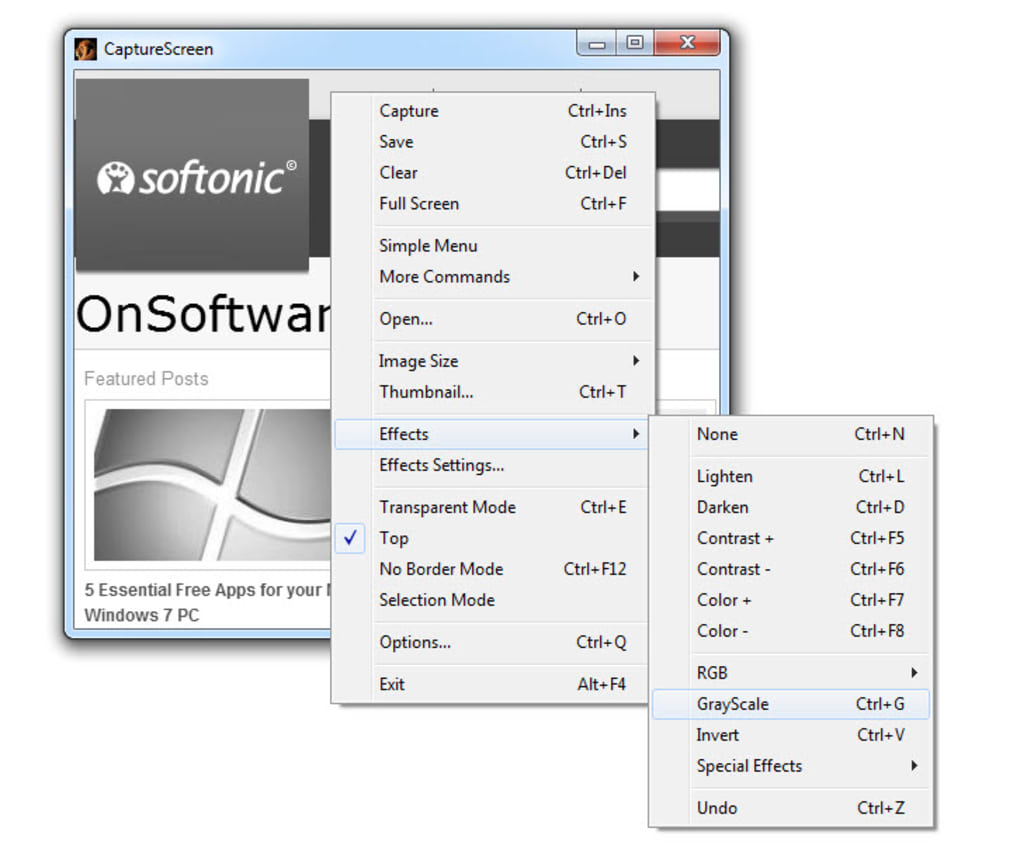
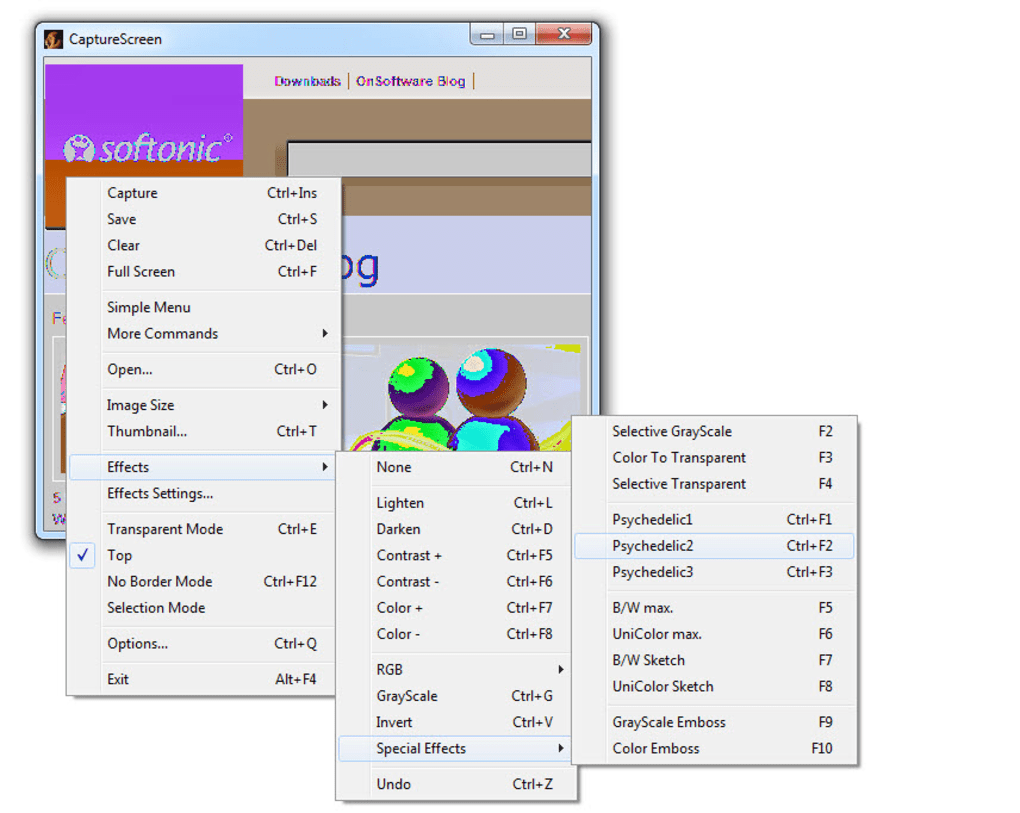
For users who want to enhance their screenshots, CaptureScreen includes basic image effects such as grayscale conversion, color saturation adjustment, and even a sketch filter that gives your image a hand-drawn appearance. These tools are not meant to replace full-featured photo editors but serve as a quick fix for minor visual improvements. The ability to apply these effects without leaving the app saves time and streamlines your workflow.
One of the biggest advantages of CaptureScreen is its cross-platform availability. You can download the free version for Windows, Mac, Android, and iOS, ensuring seamless use across devices. Whether you’re capturing a tutorial on your laptop and sharing it on your phone, or taking a screenshot on your tablet during a meeting, the app maintains consistency in performance and interface. It’s also a portable tool—no installation required—so you can run it from a USB drive or cloud folder. This makes it an excellent choice for students, remote workers, and professionals who need a reliable screen capture solution on the go.
Pros, Cons & Frequently Asked Questions
- Pros:
- Minimalist, transparent window interface for effortless capture
- Fast full-screen capture via context menu
- Lightweight and low system resource usage
- Free to download and use across Windows, Mac, Android, iOS
- Portable – no installation needed
- Basic editing tools: grayscale, color adjustment, thumbnail generation
- Cons:
- Lacks advanced features like window capture or video recording
- No batch capture or auto-save to folder functionality
- Editing options are limited compared to professional tools
- Not ideal for content creators needing complex workflows
Frequently Asked Questions (FAQ)
Is CaptureScreen free to download and use?
Yes, CaptureScreen is completely free to download and use. There are no hidden charges or subscription fees. You can access all core features—including screen capture, basic editing, and cross-platform support—without paying a single cent.
On which operating systems can I use CaptureScreen?
CaptureScreen is available for Windows, Mac, Android, and iOS. Whether you're using a desktop, laptop, tablet, or smartphone, you can easily install and run the app to capture your screen.
Do I need to install CaptureScreen?
No, CaptureScreen is a portable application. You can run it directly from a USB drive or cloud folder without installing it on your device. This makes it ideal for temporary use or shared computers.
Can I edit my screenshots after capturing them?
Yes, right after capturing a screenshot, you can access a context menu with editing tools. You can copy the image to the clipboard, generate a thumbnail, or apply effects like grayscale, color adjustment, and sketch filters.
Does CaptureScreen support video recording?
No, CaptureScreen is focused solely on still image capture. It does not support video recording. For screen recording, you may want to consider more advanced tools like OBS Studio or Camtasia.
Final Verdict: A No-Frills Tool for Quick Screen Captures
CaptureScreen stands out in the crowded market of screen capture tools by prioritizing simplicity and speed. While it may lack advanced features like window capture, video recording, or batch processing, it excels in delivering a clean, efficient experience for basic screenshot needs. Its transparent window interface is both innovative and highly functional, allowing users to capture any screen area with just a few clicks. The tool is secure, regularly updated, and available for free on all major platforms.
It’s perfect for students taking notes, professionals sharing bug reports, or anyone who needs to capture a quick image without distractions. If you're looking for a lightweight, reliable, and hassle-free screen capture solution, CaptureScreen is an excellent choice. Download it today and experience the joy of effortless screen capturing.
Download CaptureScreen now and take control of your screen captures—fast, free, and secure.
Guides & Tutorials
How to install CaptureScreen
- Click the Download button above.
- Once redirected, accept the terms and click Install.
- Wait for the CaptureScreen download to finish on your device.
How to use CaptureScreen
This software is primarily used for its core features described above. Open the app after installation to explore its capabilities.
User Reviews
No reviews yet. Be the first to share your experience.
You may also like
more
Llama 2
Free-to-use large language model As the new addition to Meta’s arsenal of langua...

NotebookLM
Revolutionizing the note-taking and idea-generation process NotebookLM is an exp...

Github co pilot
AI-inspired software development and coding platform GitHub Copilot is a browser...

Google Gemma
Google’s lightweight AI models Introducing Google Gemma , a family of cutting-ed...

AI Image Enlarger
A free app for Windows, by ai-image-larger. AI Image Enlarger is a free software...

DALL E
AI-driven text-to-image transformation engine DALL·E is a free graphic and desig...